Steam sign-in, Join Game and invites
BattleSpades works with the Steam client you already have. When you own Ace of Spades on Steam you can sign in with it, show friends what you're playing, and let them jump straight into your game.
Before you start
- Start Steam and sign in before (or while) the game runs. If you start Steam after the game, the SIGN IN THROUGH STEAM button appears within about 10 seconds.
- Your Steam account should own Ace of Spades. Accounts without it fall back to a test app and can't join players who own it.
- For Steam's Join Game to launch BattleSpades when it's closed, the BattleSpades
aos.exemust be the one in Steam's Ace of Spades folder, alongsidesteam_api64.dllandBattleSpadesSteamBridge32.exe.
Sign in through Steam
- 01Wait for the button
The sign-in screen shows CONNECTING TO STEAM... while it talks to Steam.
- 02Press SIGN IN THROUGH STEAM
Your Steam name becomes your in-game name. No browser window is involved.
Let friends join from Steam
While you host a match, your Steam status reads Hosting <map>, <mode>. Your friends can then:
- Right-click you in the Steam friends list and choose Join Game. If BattleSpades is already running, it leaves their current match and joins yours; if it's closed, Steam starts it and joins after they sign in.
- Type
steam:<id>into Direct Connect. The loading screen shows the exact line: "Friends can join with steam:<id>".
Send a Steam invite
- Open the Steam overlay (Shift + Tab by default), find your friend and choose Invite to Game.
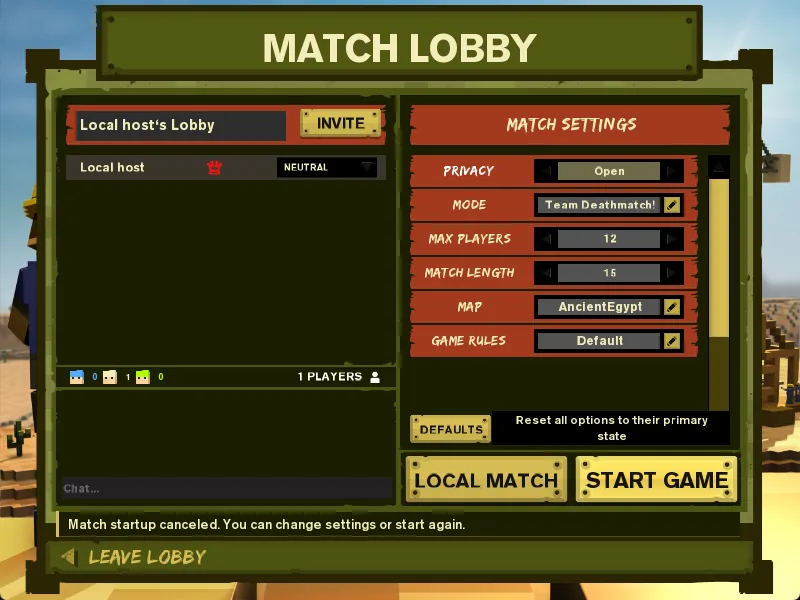
- In a Match Lobby, Invite Friends opens the Steam overlay's invite picker when AoSPlay isn't reachable.
- Accepting an invite works even if the game is closed: Steam starts BattleSpades and it joins the lobby after sign-in.
Fix: Steam is running but nothing Steam works
Symptoms: the SIGN IN THROUGH STEAM button never appears, or Join Game and invites do nothing, even though Steam is open.
This happens when an old no-Steam copy of Ace of Spades (a Steam emulator) or a Steam crash left Steam's registration pointing at a program that has closed. BattleSpades deliberately won't edit your registry to fix it.
- 01Quit BattleSpades
Close the game completely.
- 02Fully exit Steam
Use Steam → Exit (or right-click the tray icon → Exit). Closing the window isn't enough.
- 03Start Steam again
Wait until you're signed in.
- 04Start BattleSpades
The Steam button and Join Game should work again.
If you want to confirm the cause, BattleSpadesClient.log (next to the program) contains a line starting "Steam is running (pid …) but its registration names pid …, which has exited".
Common questions
Can I test Join Game with two copies on one PC?+
No. Steam allows one running game per account, so Join Game needs two PCs and two Steam accounts.
Do Steam friends and AoSPlay friends mix?+
They're separate lists. AoSPlay friends are managed in the in-game Friends menu; Steam friends use Steam's own friends list and overlay.