Controls, keybinds and settings
BattleSpades ships with the original Ace of Spades key layout. This page lists every default key, explains the in-match shortcuts, and helps you pick graphics settings for your PC.
Default keys
These are the retail Ace of Spades defaults. You can change most of them in Settings → CONTROLS.
| Action | Default key |
|---|---|
| Move forward / back / left / right | W S A D |
| Jump | Space |
| Crouch | Left Ctrl |
| Sprint | Left Shift |
| Sneak (walk quietly) | V |
| Fire / use tool | Left mouse (fixed) |
| Aim down sights | Right mouse |
| Reload | R |
| Select weapon or tool slot | 1 – 9 (fixed) |
| Next / previous weapon | Mouse wheel (fixed) |
| Pick block colour | E |
| Action | Default key |
|---|---|
| Global chat | T |
| Team chat | Y |
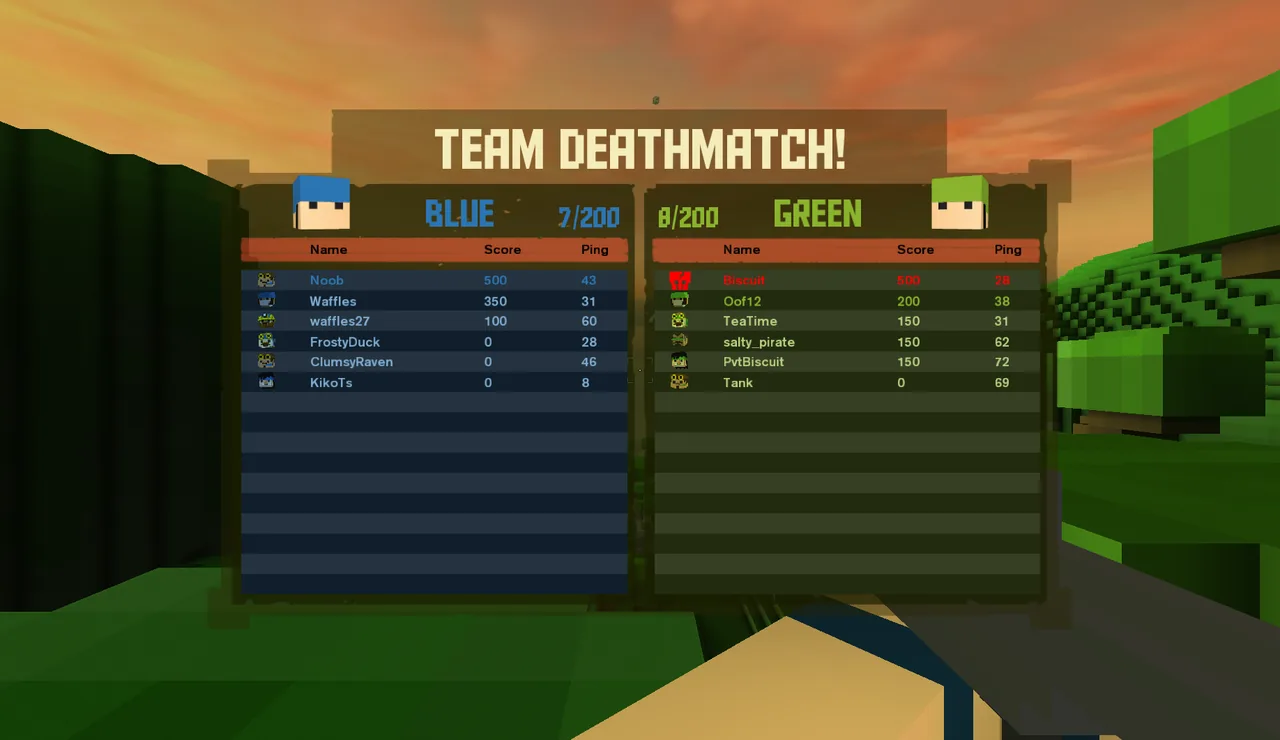
| Scoreboard | Tab |
| Big map | M |
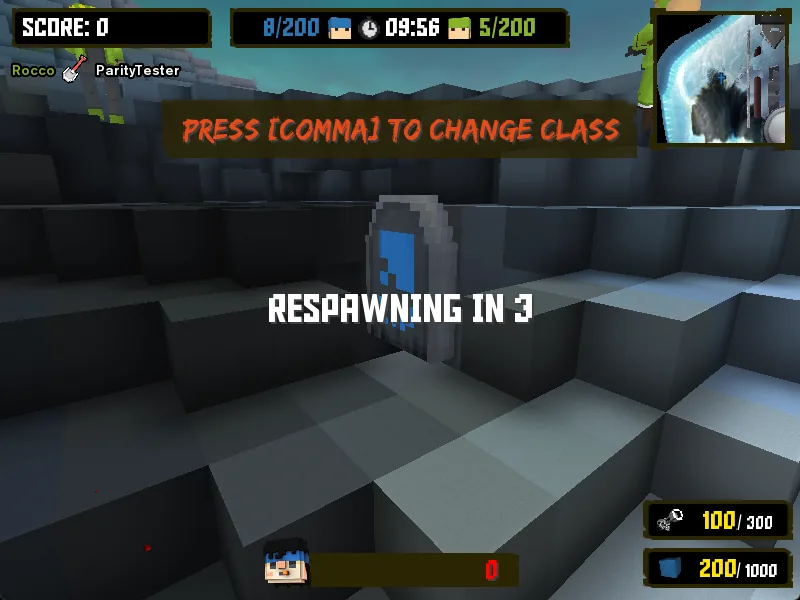
| Change class | , (comma) |
| Change team | . (period) |
| In-game menu | Esc |
| Vote for next map 1 / 2 / 3 | F1 F2 F3 |
| Start a vote-kick | K |
| Hide the HUD | Unbound (set one in Settings) |
| Action | Default key |
|---|---|
| Map settings | X |
| Tool help | H |
| Move through the palette | Arrow keys |
| Cancel prefab | Q |
| Carve prefab | C |
| Jetpack hover | Z |
| Quick save | F10 |
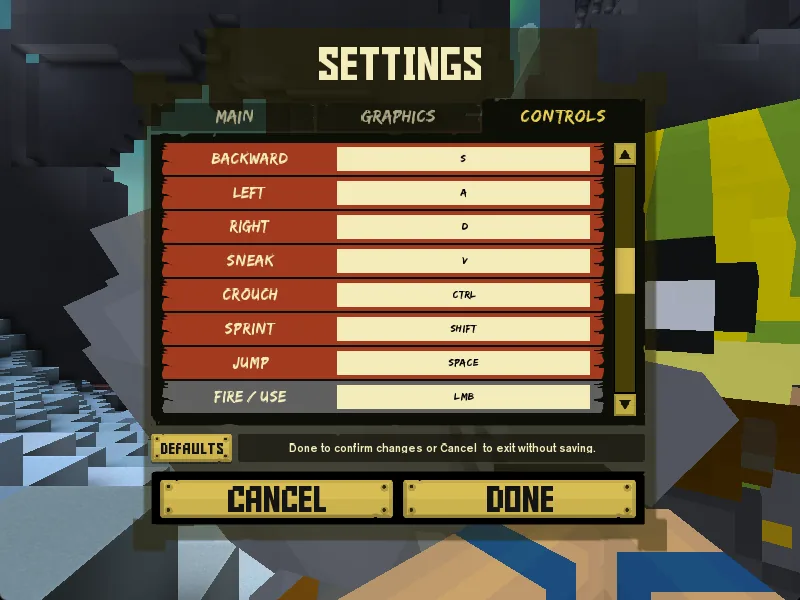
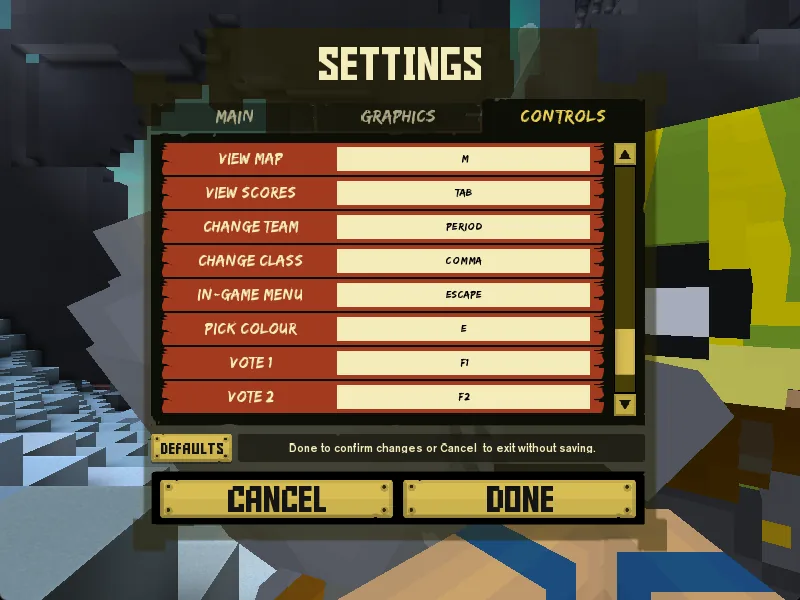
Change a key
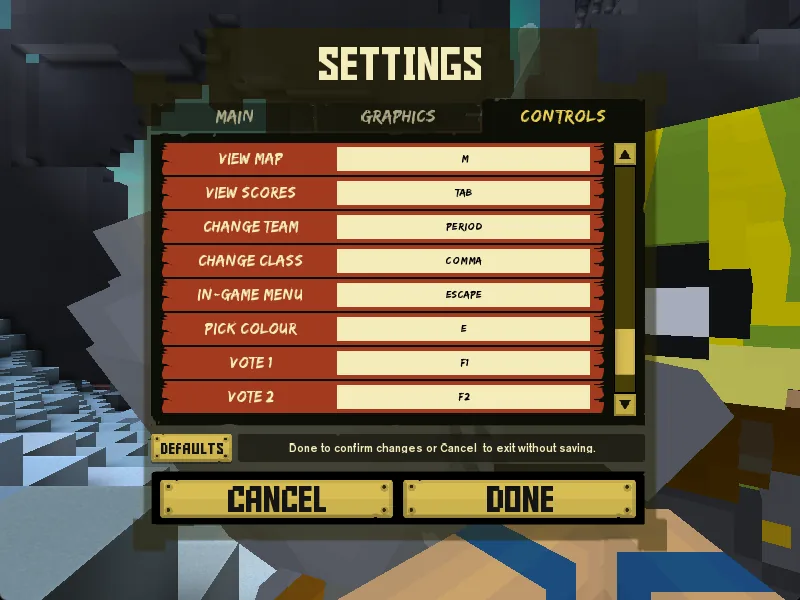
- 01Open Settings
From the main menu, or press Esc in a match and choose SETTINGS.
- 02Go to the CONTROLS tab
Scroll to the action you want to change and click its key box.
- 03Press the new key
A key can only do one thing, so if it was already used elsewhere that other binding is cleared.
- 04Press DONE
CANCEL throws away your changes. DEFAULTS resets only the CONTROLS tab back to the retail layout.
In-match menus
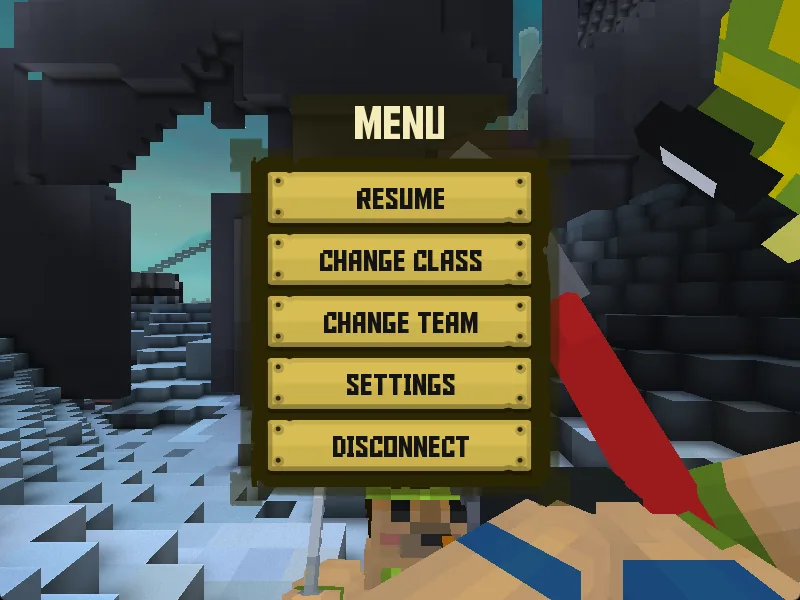
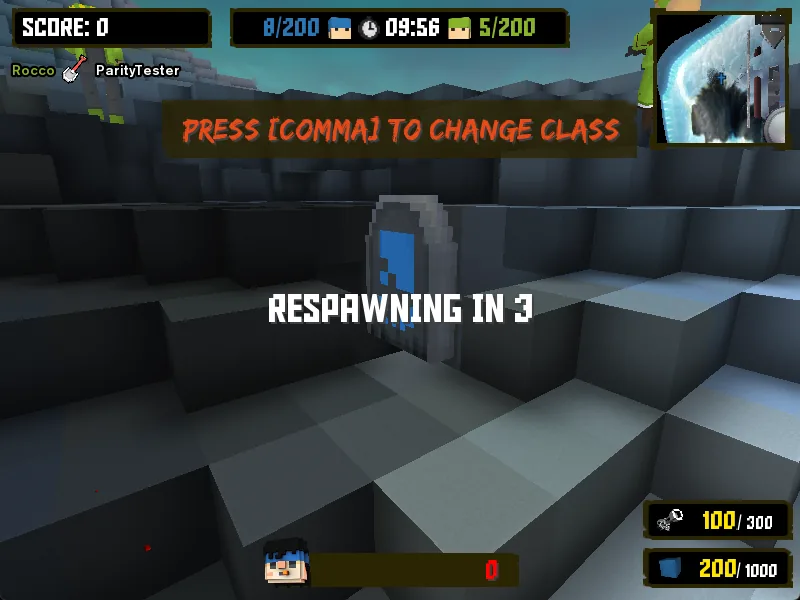
- Esc opens the MENU: RESUME, CHANGE CLASS, CHANGE TEAM, SETTINGS and DISCONNECT.
- , opens CHOOSE CLASS straight away; the change applies when you next spawn.
- . opens CHANGE TEAM, where you can also switch to SPECTATE.
- K opens SELECT PLAYER TO KICK. A vote-kick needs at least three players on your team.
- Graphics options are greyed out while you are in a match; change them from the main menu.
Graphics settings
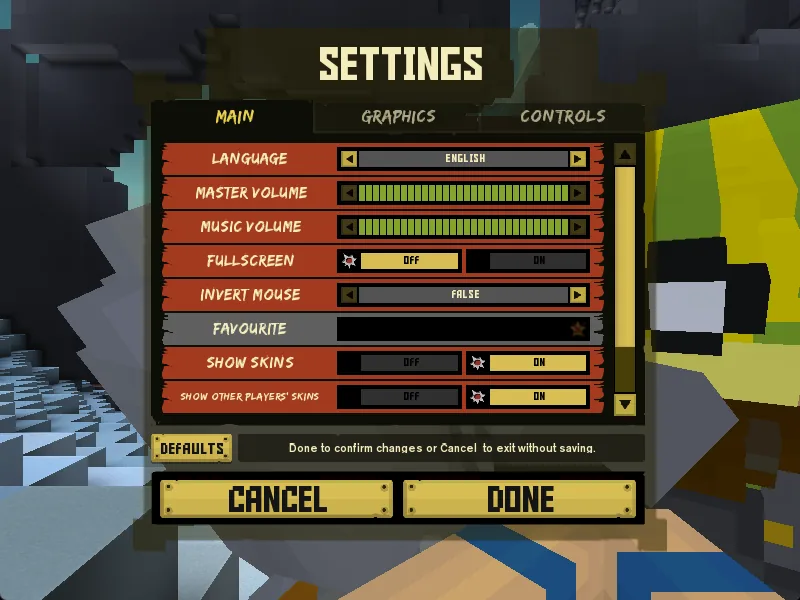
Settings has three tabs: MAIN (language, volumes, fullscreen, invert mouse, skins), GRAPHICS and CONTROLS.
| Option | Choices | Default |
|---|---|---|
| Resolution | Your monitor's modes | A safe window on first launch |
| Graphics API | Auto, Direct3D 11, Direct3D 12, Vulkan, OpenGL | Auto (restart needed) |
| Shader Quality | RETAIL, Low, Medium, High, Ultra | RETAIL on a new install |
| Compatibility Shader | On / Off | On (this is what gives the RETAIL look) |
| Effect Quality | Low, Medium, High | Medium |
| Draw Distance | Low, Medium, High | High |
| Texture Quality | Low, Medium, High | Medium (restart needed) |
| Model Quality | Low, Medium, High | High (restart needed) |
| Antialiasing | Off, 2x, 4x | Off |
| VSync | On / Off | Off |
| Level | Lighting | Sun shadows | Dynamic lights | Lit particles |
|---|---|---|---|---|
| RETAIL | The original game's lighting | None | 0 | No |
| Low | Enhanced | None | 2 | No |
| Medium | Enhanced | Yes | 4 | No |
| High | Enhanced | Yes | 8 | Yes |
| Ultra | Enhanced | Yes, sharper | 8 | Yes |
- Want it to look exactly like 2012? Leave Compatibility Shader on: Shader Quality reads RETAIL.
- Want shadows and dynamic lights? Turn Compatibility Shader off (it lands on Medium), then raise Shader Quality if your PC keeps up.
- Low frame rate? Lower Effect Quality and Draw Distance first, then Shader Quality. Try a different Graphics API if you see glitches or stutter.
- After a resolution change you have 15 seconds to press Keep; otherwise it reverts automatically.
Common questions
Is there a field of view (FOV) setting?+
No. BattleSpades keeps the original game's fixed field of view.
Why can't I rebind the number keys or the left mouse button?+
Fire/use, weapon slots 1–9 and the mouse wheel are fixed, as in the original game. Everything else on the CONTROLS tab can be changed.
Why are graphics settings greyed out?+
They can't be changed during a match. Disconnect or finish the match and change them from the main menu.